

What Is Googlebot?
Googlebot is the main program Google uses to automatically discover and crawl web pages.
It visits web pages and collects information that helps Google understand what those pages contain.
It’s often called a crawler, robot, or spider. Essentially, it’s one of Google’s “client” agents deployed to perform specific tasks — in this case, scanning websites.
The Role of Google’s SEO Spider
As Google’s primary web crawling robot, Googlebot’s role is to keep Google’s massive database—known as the index—up to date.
The more complete and current this index is, the more relevant and useful the search results will be for users.
Googlebot Subtypes
There are actually two main types of crawling robots used by Google Search, both commonly referred to as Googlebot:
- Googlebot Smartphone: Simulates a user browsing on a mobile device.
- Googlebot Desktop: Acts like a desktop user and analyzes the desktop version of a website.
💡 Pro tip: To find out which type of Googlebot has visited your site, check the HTTP request header user-agent in the request.
However, keep in mind that both bots use the same user-agent token in the robots.txt file, making it impossible to identify the type of bot from that file alone.
Also note that there are other specialized crawlers such as Googlebot Image, Googlebot Video, and Googlebot News.
How Exactly Does Googlebot Work?
Googlebot helps Google deliver relevant and accurate results in the search engine results pages (SERPs).
It does this by crawling web pages, collecting their data, and sending it off for indexing.
To understand how it operates, let’s take a closer look at the crawling and indexing phases.
What Is Crawling and How Does Googlebot Crawl the Web?
Crawling refers to the process by which automated programs—called crawlers—find new or updated web pages and download them so they can appear in search results.
The first stage of crawling is called URL discovery.
Before Google can show a page in its results, it must first know that the page exists.
Google is constantly looking for new or updated pages.
Typically, it discovers these pages by following links (URLs) from pages it already knows.
The crawling software (Googlebot) then downloads these new pages, extracts the links within them, and crawls those in turn—continuing the process.
Googlebot relies on algorithms to decide which sites to visit, how often, and how many pages to fetch from each site.
What Are Fetching and Rendering?
After identifying your URLs, Googlebot moves to the next stage: fetching, which means downloading the page linked to that URL.
Fetching simply involves retrieving the data served by a given URL. But the most interesting part is rendering.
Rendering is exactly what your web browser does.
The rendering service takes the downloaded page—usually a mix of HTML, CSS, and JavaScript—and turns it into a visual representation.
In doing so, it executes all JavaScript using a recent version of Chrome.
Rendering is crucial because many websites rely on JavaScript to display their content or make their pages interactive.
Without this step, Google wouldn’t see dynamic content such as animations, scrolling text, or other interactive elements.
How Does Google Index the Web? – A Quick Look at the Indexing Phase
Now that you know how Google discovers and retrieves web pages, the next important question is: how do those pages become accessible through Google Search?
This happens through a vital step called indexing.
Once Googlebot fetches your content, it sends it off for analysis.
In short, indexing is the process by which Google processes the information collected by its crawlers to understand your page and store it properly in its index.
Being in Google’s index is what allows your content to appear in search results.
Note that Google may choose not to index some of your pages.
What Impact Does This Have on Your SEO?
Googlebot plays a vital role in your search engine optimization (SEO). Without its visits, your website’s pages wouldn’t be crawled or indexed (in most cases).
And if they’re not indexed, they simply can’t rank in search results.
No ranking means no visibility—and therefore, no organic (unpaid) traffic.
Moreover, Googlebot regularly revisits your site to detect updates or newly added content.
Without this step, your changes wouldn’t be taken into account, making it harder to maintain visibility in search results.
Now you’re probably wondering how to optimize Googlebot’s crawling of your pages.
Let’s start by seeing how to tell it where not to go. You’ll understand this better in the next section…
How to Block Googlebot
Sometimes, you may not want Googlebot to crawl or index certain parts of your website. Whether it’s an entire section or just a specific page, there are several legitimate reasons to set these limits.
For example:
- Your site is under maintenance, and you’d rather prevent users from landing on incomplete or broken pages.
- You want to block the indexing (and display) of certain files such as PDFs or videos.
- You’d like to keep some pages private, such as an intranet or a login page.
- You want to focus Googlebot’s crawl activity on your most important pages (this is known as optimizing your crawl budget).
Here are three effective methods to control what Googlebot can crawl:
Methods to Control Crawling
- The robots.txt File
The robots.txt file provides instructions to crawling robots like Googlebot. It tells them which parts of your site they should or shouldn’t visit.
This is useful for managing crawler traffic and can help prevent server overload.
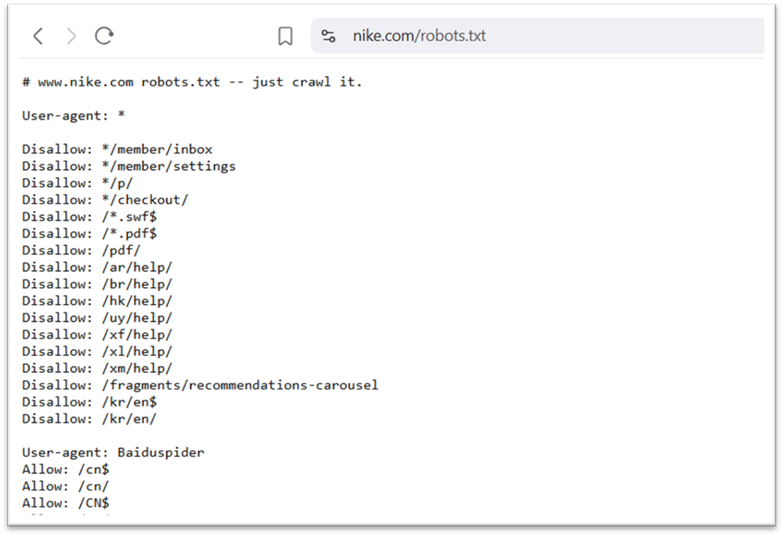
Here’s an example of a robots.txt file (Nike’s, for instance)…

User-agent: *
Disallow: /login/
This helps ensure that your server’s resources are focused on your most important pages.
⚠️ Important: Even if a page is blocked by the robots.txt file, it can still be indexed. If other pages link to it, Google might still index the URL and display it in search results.
If you really don’t want the page to appear in search results, it’s better to use a meta robots tag instead.
2. Meta Robots Tags
The meta robots tag is a small piece of HTML code that you add to your page’s code. It allows you to control how Google crawls, indexes, and displays that page in search results.
Here are some examples of meta directives and what they do:
- noindex: don’t index the page.
- noimageindex: don’t index the images on the page.
- nofollow: don’t follow the links on the page.
- nosnippet: don’t show a snippet (text preview) in search results.
You can add these tags inside the <head> section of your page’s HTML code.
Example — to block a page from being indexed by Googlebot:
<meta name=”robots” content=”noindex, nofollow”>

Even if other websites link to that page, it won’t appear in Google’s search results.
3. Password Protection
To prevent both Googlebot and users from accessing a page, the best method is password protection.
Only authorized users will be able to view the page, and Googlebot won’t be able to crawl or index it.
You can apply this to pages such as:
- Admin dashboards
- Member areas
- Internal documents
- Test versions of your website
- Confidential project pages
If a protected page has already been indexed, don’t worry — Google will eventually remove it from its results.
Optimizing Your Crawl: Define Googlebot’s Actions Yourself
Of course, I recommend using the methods discussed earlier to control Googlebot’s crawling, manage your crawl budget, and so on — but be careful not to hurt your own SEO efforts in the process.
For example:
- Avoid blocking access to an important page with a password — Googlebot simply won’t be able to reach it.
- Setting your entire website to noindex? That’s a bad idea if you want your pages to be indexed and attract organic traffic.
The techniques shared above will help you better control Googlebot’s activity on your site. But you can also use this knowledge to spot potential issues, depending on your indexing needs.
How to Monitor Googlebot’s Activity on Your Site
Identify Googlebot Visits and Use Them to Improve Your SEO
Regularly monitoring Googlebot’s behavior helps you quickly spot potential crawling or indexing issues — and fix them before they harm your organic visibility.
Here are two effective methods to keep track of its visits:
- Monitor Crawl Stats via Google Search Console
Google Search Console provides a dedicated Crawl Stats report, which is extremely useful for analyzing Googlebot’s activity on your site.
To access it, log in to your GSC account, then go to “Settings” from the left-hand menu.
Under the “Crawling” section, click “Open Report.”
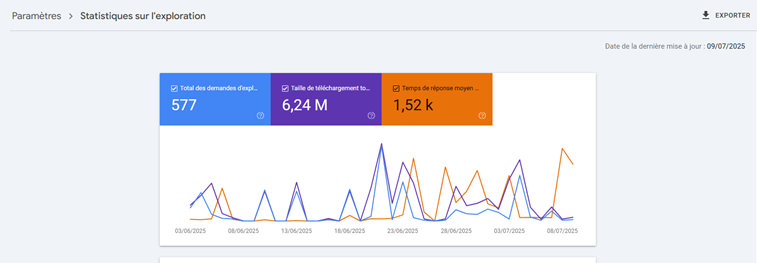
There, you’ll find three graphs showing the evolution of several key metrics over the past three months:
- Total crawl requests: corresponds to Googlebot’s visits to your site.
- Total download size: indicates how much data was retrieved.
- Average response time: shows how quickly your server responds to crawl requests.
Pay attention to spikes, sudden drops, or unusual trends. Collaborate with your developer if you notice anomalies such as server errors, slowdowns, or structural changes.
You’ll also find a detailed breakdown of crawl requests.
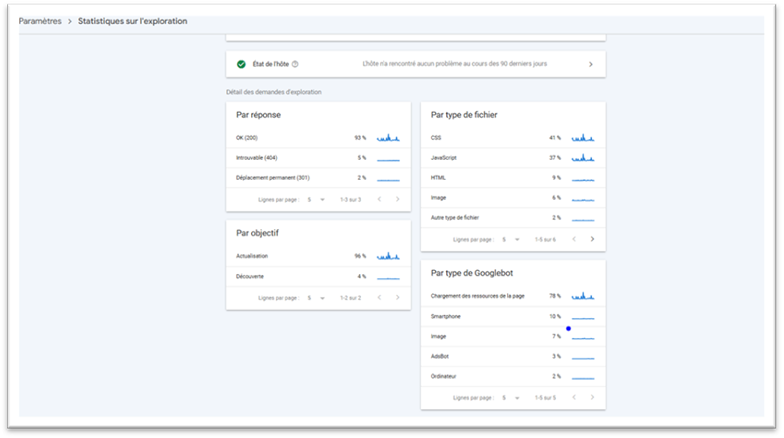
It provides data based on several criteria:
- By response code: useful to check if your site responds correctly to requests. A high number of “200 OK” statuses is a good sign. On the other hand, errors like 404 (not found) or 301 (redirect) may indicate broken links or moved content.
- By file type: shows which types of files are being crawled (HTML, images, scripts, etc.) — helpful for detecting specific issues.
- By purpose: identifies the intent behind each crawl. A high “discovery” rate means Google is looking for new pages; a high “refresh” rate means it’s revisiting existing content.
- By Googlebot type: tells you which user agents are active. If you notice a sudden spike in crawl activity, this filter helps you identify which bot caused it.
2. Use Log Files
Log files record every request made to your server — from visitors, browsers, and bots alike.
They let you track Googlebot’s visits in detail and spot potential issues.
From log files, you can extract data such as:
- The IP address of each “visitor”
- The time of each request
- The requested URL
- The type of request
- The amount of data transferred
- The user agent
This is a goldmine of information for understanding when, how, and how often Googlebot crawls your site. You can also detect possible slowdowns or loading errors.
Where to find these files?
Log files are stored on your hosting server. To access them:
- Use the file manager provided by your hosting provider (many hosts offer one).
Alternatively, a developer or web technician can retrieve them via an FTP client like FileZilla.
Is It Really Googlebot Crawling Your Site?
Some SEO tools or malicious bots can impersonate Googlebot. This sometimes allows them to bypass restrictions meant to block access.
If you suspect suspicious activity on your site, know that it is possible to verify whether the bot interacting with your server is indeed a genuine Googlebot.
In the past, this verification was done solely via a DNS lookup. Today, Google has made things easier by publicly listing the IP addresses used by its bots, which you can compare with your server logs.
There are two reliable methods for performing this check:
Method 1: Manual Verification (Ideal for Isolated Cases)
If you want to perform a one-time check, you can use command-line tools. This is sufficient in most cases.
Steps:
- Perform a reverse DNS lookup using the host command, targeting the IP address found in your server logs.
- Verify that the returned domain name belongs to Google: it should end with googlebot.com, google.com, or googleusercontent.com.
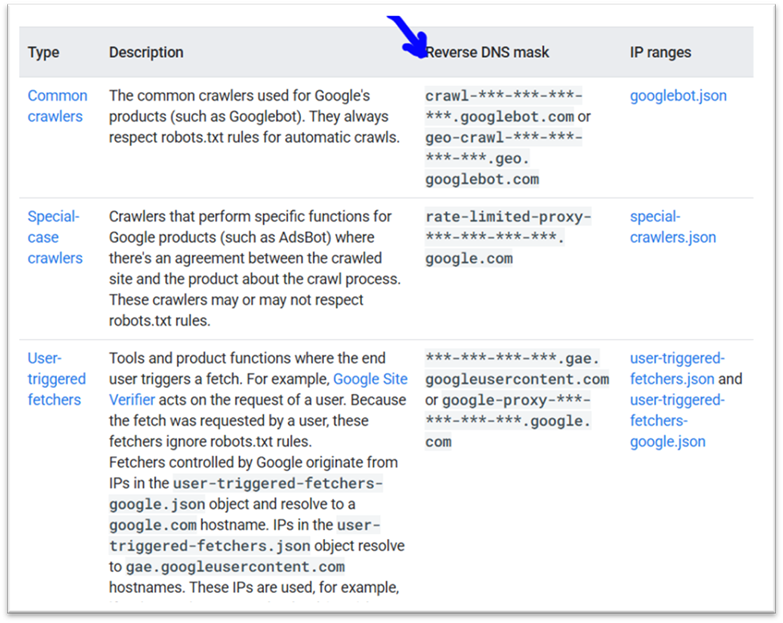
- Then, perform a forward DNS lookup on that domain name, again using the host command.
- Compare the result with the original IP address: if they match, it’s a good sign.
Example:
1-) host 35.247.243.240
→ geo-crawl-35-247-243-240.geo.googlebot.com
2-) host geo-crawl-35-247-243-240.geo.googlebot.com
→ 35.247.243.240
Method 2: Automated Verification (Better for General Monitoring)
You can also automate this check by matching the detected IP address with Google’s publicly available official IP ranges.
These lists cover different types of bots:
- Standard crawlers like Googlebot
- Specialized bots like AdsBot
- User-initiated extractions (by users or Google)
⚠️ Note: In the JSON files provided by Google, IPs are listed in CIDR format.
For more details on these methods, refer to Google’s official documentation.
Does the Googlebot User-Agent Prioritize User Experience?
Optimizing your site for Googlebot can also mean optimizing it from a UX perspective.
As mentioned earlier, getting your page crawled does not guarantee it will be indexed.
For example, low-quality pages or those offering a poor user experience may not be indexed.
Consider not only your content but also the technical performance of your pages.
Pay particular attention to the mobile version of your pages: as noted at the start of the article, Google has a dedicated bot for mobile versions of your site.
💡 Note: According to Google’s official documentation, for the majority of websites, the mobile version of content is primarily indexed.
Consequently, after crawl requests, most visits will be made by the mobile bot, while the desktop bot is far less active.
You wouldn’t want to risk being “poorly rated” by Googlebot Smartphone… right?! Haha…
Why Is It Essential to Make Your Site “Optimized” for Googlebot?
In general, a site optimized for Googlebot allows you to:
- Control your crawl budget:
As mentioned earlier, this ensures Googlebot focuses its crawling time on the pages that truly matter. - Get indexed:
In other words, make your important pages appear in search results.
…and more.
